What Is ChatPDF
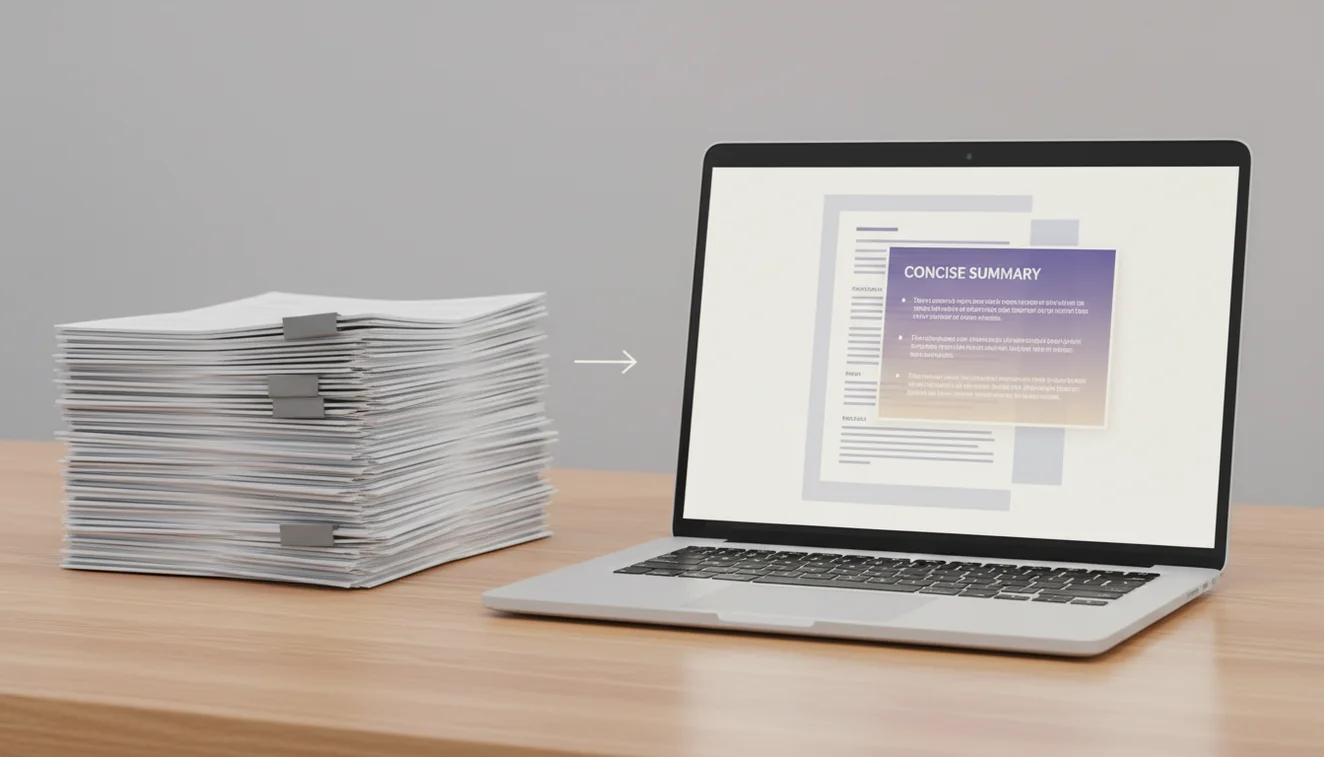
ChatPDF is an AI-powered tool that lets you have a conversation with the contents of a PDF document. Instead of scrolling through pages hunting for the one paragraph that answers your question, you upload the content and ask the AI directly. It reads the text, understands the structure, and gives you targeted answers - summaries, explanations, data extraction, whatever you need. The technology combines large language models with visual analysis so it can process both pasted text and screenshots of document pages. The AI may misinterpret complex formatting or miss nuances that span multiple pages, so always verify critical details against the original document.
I started using PDF chat tools when I had to review a 90-page vendor contract with a 48-hour turnaround. Reading every clause wasn't realistic. Uploading pages and asking "what are the termination conditions" or "summarize the liability section" cut my review time by about 70%. The AI didn't catch everything - it missed a buried indemnification clause that referenced an appendix - but it gave me a working map of the document in minutes instead of hours. That's the honest value proposition. Not perfection. Speed with a safety net of human review.
How ChatPDF Works
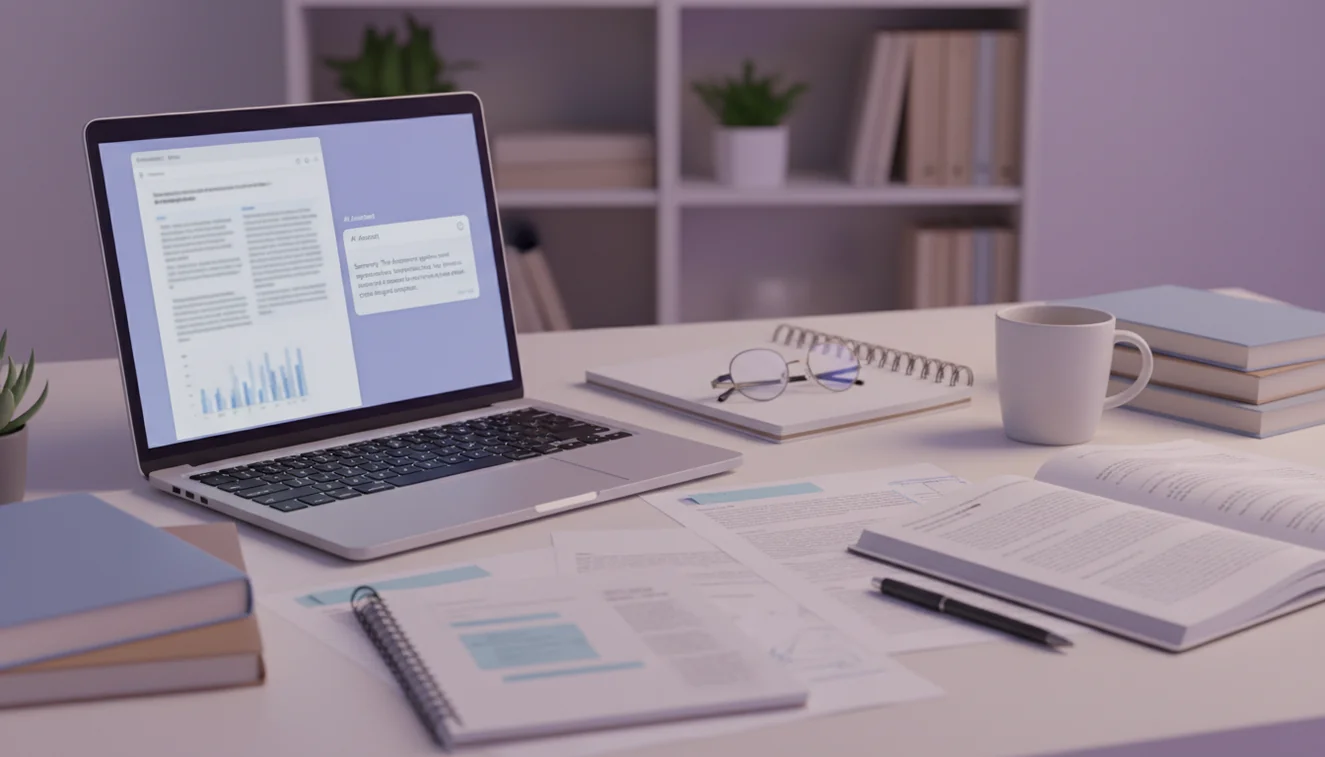
The process is straightforward. You either paste text from your PDF directly into the chat or upload a screenshot of the page you want analyzed. The AI processes the content - running text through its language model, or using vision capabilities to read text from images - and then waits for your question. You ask whatever you need: "What's the main finding of this study?" or "List all the dates mentioned in this contract." The AI responds with focused answers based solely on the document content you provided.
Multi-turn conversations are where this gets powerful. You upload a page, ask for a summary, then follow up with "what evidence supports the second claim?" or "explain the methodology in simpler terms." The AI keeps the document context in memory throughout your session. Each follow-up question builds on the last. It works the way you'd work with a research assistant who just finished reading the document - except this one responds in seconds and never gets tired of rephrasing things for you.
Real Use Cases for ChatPDF
Students and researchers are the heaviest ChatPDF users, and for obvious reasons. Academic papers are dense, jargon-heavy, and often structured in ways that bury the practical takeaways. Uploading a paper and asking "what did this study actually find, in plain English" saves the 45 minutes you'd spend decoding the abstract, methods, and discussion sections yourself. Law students upload case briefs. Med students upload clinical guidelines. MBA students upload quarterly earnings reports. Same pattern - dense document, specific questions, fast answers.
Professionals use it differently but just as often. Contract review is huge: upload a vendor agreement page by page and ask the AI to flag unusual terms, summarize obligations, or compare clauses to standard language. HR teams upload policy documents and ask "does this cover remote work guidelines?" Financial analysts paste earnings call transcripts and ask for key metrics. The AI Chat tool handles open-ended conversations, but ChatPDF is purpose-built for document-centric workflows where you need the AI grounded in specific content rather than general knowledge.

Limitations Worth Understanding
ChatPDF is not a replacement for actually reading critical documents. The AI can miss nuance, skip context that spans multiple pages, and occasionally misinterpret table data or complex formatting. It works best as a first-pass tool - a way to quickly identify what matters in a document before you do the careful reading where it counts. If you're signing a contract, don't rely solely on the AI's summary. Use it to prioritize which sections need your full attention.
Image quality directly affects accuracy. A blurry screenshot of a scanned document from 1998 will produce worse results than a clean, high-resolution capture of a modern PDF. The AI can't read what it can't see. Similarly, handwritten annotations, watermarks, and unusual layouts can confuse the visual processing. For best results, use clear screenshots and supplement with pasted text when possible. The ChatGOT platform processes each session independently - your document data isn't stored or used for training after the conversation ends.
Document Types That Work Best
Text-heavy PDFs with clear structure produce the strongest results. Research papers with distinct sections - abstract, methods, results, discussion - give the AI natural anchor points for summarization and targeted Q&A. Legal contracts with numbered clauses and defined terms allow precise extraction. Financial reports with labeled tables and headers enable the AI to locate and interpret specific data points. On the weaker end, PDFs that are essentially image dumps - scanned brochures, infographics with embedded text, heavily formatted marketing materials - challenge the visual processing and may return incomplete or misread content.
OCR vs Native PDF
A native PDF contains selectable, machine-readable text. A scanned PDF is essentially a photograph of a printed page, requiring optical character recognition to extract the words. This distinction matters for ChatPDF. Native PDFs - the kind generated by Word, Google Docs, or LaTeX - paste cleanly and give the AI perfect text to work with. Scanned documents introduce OCR errors: misread characters, broken table structures, and lost formatting. If you're working with scanned documents, use the highest resolution screenshot possible and verify any extracted numbers or proper nouns against the original. The AI interprets what it can see, and blurry scans produce blurry answers.
Academic Research Workflows
Researchers get disproportionate value from ChatPDF because academic papers are dense by design. A practical workflow: upload the abstract and conclusion first to decide if the paper is worth a deep read. If it is, upload the methodology section and ask the AI to explain the experimental design in plain language. Then hit the results section and ask for a summary of key findings with statistical significance noted. This staged approach mirrors how experienced researchers skim papers - except the AI does the first-pass comprehension in seconds. For literature reviews covering dozens of papers, ChatPDF compresses hours of skimming into focused question-and-answer sessions. The AI Writer pairs well here - use ChatPDF to extract insights, then feed them into AI Writer to draft your literature review section.
ChatPDF App
ChatGOT brings ChatPDF to your phone as part of the free iOS app. Upload document screenshots directly from your camera roll, ask questions on the go, and get answers without sitting at a desk. The app removes daily message limits for subscribers, which matters if you're working through a long document with dozens of questions. Download the AI Chat app to get ChatPDF with unlimited access on mobile.